


More than one in five Florida residents is 65 or older, and in several counties the share passes one in three. For those residents, a smartphone is the line to family, physicians, pharmacies, rides and storm alerts. This guide explains the accessibility settings and safety features that matter most when a family sets up a phone for an older adult, provides a checklist a caregiver can finish in one sitting, and describes the Figgers plans and support options available to Florida seniors.
A phone handed to a parent in its factory state tends to end up in a drawer: the text is too small, the ringer too quiet, and one wrong tap opens a screen nobody recognizes. The remedy is about 45 minutes of deliberate setup using controls current smartphones already include. What follows applies to any modern handset, including the Figgers DragonX.
Florida's older population, by the numbers
The U.S. Census Bureau's QuickFacts profile puts the share of Floridians age 65 and older at 21.8 percent, against a July 1, 2025 population estimate of 23,462,518, or roughly 5.1 million people. The share is far higher in retirement regions. Census county profiles show Sumter County, home to The Villages, at 57.6 percent age 65 and older, Charlotte County at 40.9 percent, Sarasota County at 38.8 percent, Citrus County at 38.1 percent and Highlands County at 36.4 percent.
For an older adult, the phone is the daily link to children and grandchildren in other states, the screen where telehealth reminders, pharmacy refill notices and ride requests arrive, the way to reach 911 and be reached, and the first place wireless emergency alerts land during storm season. Each of those jobs depends on settings that are switched off, or tuned for younger eyes and ears, out of the box.
Accessibility settings to turn on first
Current smartphones group these controls in an accessibility section of the settings menu. Work through them with the person holding the phone; the right value is the one they can read and hear.
Vision
Text size and display size. Raise text size first, then display size, which also enlarges icons, buttons and spacing.
Bold text and high contrast. Bold thickens every letter; high contrast adds dark outlines so text stays readable in bright sun on a lanai.
Enable the zoom gesture for fine print in a pharmacy app or a utility bill.
Screen reader. For low vision, the built in screen reader speaks whatever is under the finger. It changes how touch works, so practice together first.
Automatic brightness and a longer screen timeout. Keep the display awake at least two minutes so it does not go dark mid message.
Hearing
Flash and vibration alerts. The camera flash or a strong vibration pattern announces a call the ringer cannot reach from the next room.
Mono audio and balance. Mono sends the same signal to both ears; the balance slider shifts volume toward the stronger ear.
Hearing aid mode. Enable it if the person wears a hearing aid. The ratings behind it are explained below.
Dexterity
Touch and hold delay. A longer delay stops a tremor from being read as a long press that rearranges the home screen.
Voice typing and a voice assistant. Dictation replaces the keyboard, and the assistant places calls by name, hands free.
A simplified home screen. Keep Phone, Messages, Camera, weather and two or three family contacts as large icons. Fewer targets means fewer wrong taps.
Hearing aid compatibility: what the FCC ratings mean
The FCC's hearing aid compatibility rules rate wireless handsets on two scales. The M rating, from M1 to M4, covers acoustic mode, in which the hearing aid's microphone picks up sound from the earpiece. The T rating, from T1 to T4, covers inductive coupling, in which the hearing aid switches to its telecoil and receives the phone's magnetic signal while shutting out room noise. On both scales 4 is best, and the FCC considers a handset hearing aid compatible at M3 and T3 or higher. Devices certified under the 2019 ANSI standard, required for new devices since December 2023 and the source of a volume control requirement, carry a hearing aid compatible label on the package.
FCC guidance is to test a handset with the hearing aid before buying and to check the return policy first. Figgers lists easy return or exchange within 15 days on figgers.com, and a customer can ask Figgers support at 1-800-223-5435 for a specific device's compatibility rating before ordering.
Safety settings to configure before an emergency
Several protections only work if someone sets them up ahead of time.
Lock screen emergency information. Current phones can show emergency contacts, medications, allergies and blood type without entering the code. Fill in every field and add at least two contacts.
Location sharing. Share the phone's location with one trusted family member so a missed call during a storm does not become a search.
The DragonX emergency call feature. On the Figgers DragonX, this feature captures photos and audio and sends a text message to up to four designated people. Recipients must be entered before an emergency, so do it during setup and send a test so each person recognizes the format.
A shortcut key set to the right job. The DragonX's customizable shortcut key can launch a chosen app, such as the infrared thermometer or Push to Talk, saving a trip through the menus.
Face unlock, with a written PIN as backup. The DragonX supports face unlock, which opens the phone without a code. Keep a PIN as the fallback, written down where the family can find it.
Call blocking and spam screening. The phone's call settings can silence unknown numbers and flag suspected spam. Turn both on; fraud aimed at older adults usually begins with an unexpected call.
The family PIN rule. Agree, out loud, that nobody in the family will ever read a one time code to a caller, whoever the caller claims to be.
Wireless emergency alerts. Confirm the alert categories are on and leave them on through storm season.
Figgers plans and services for seniors
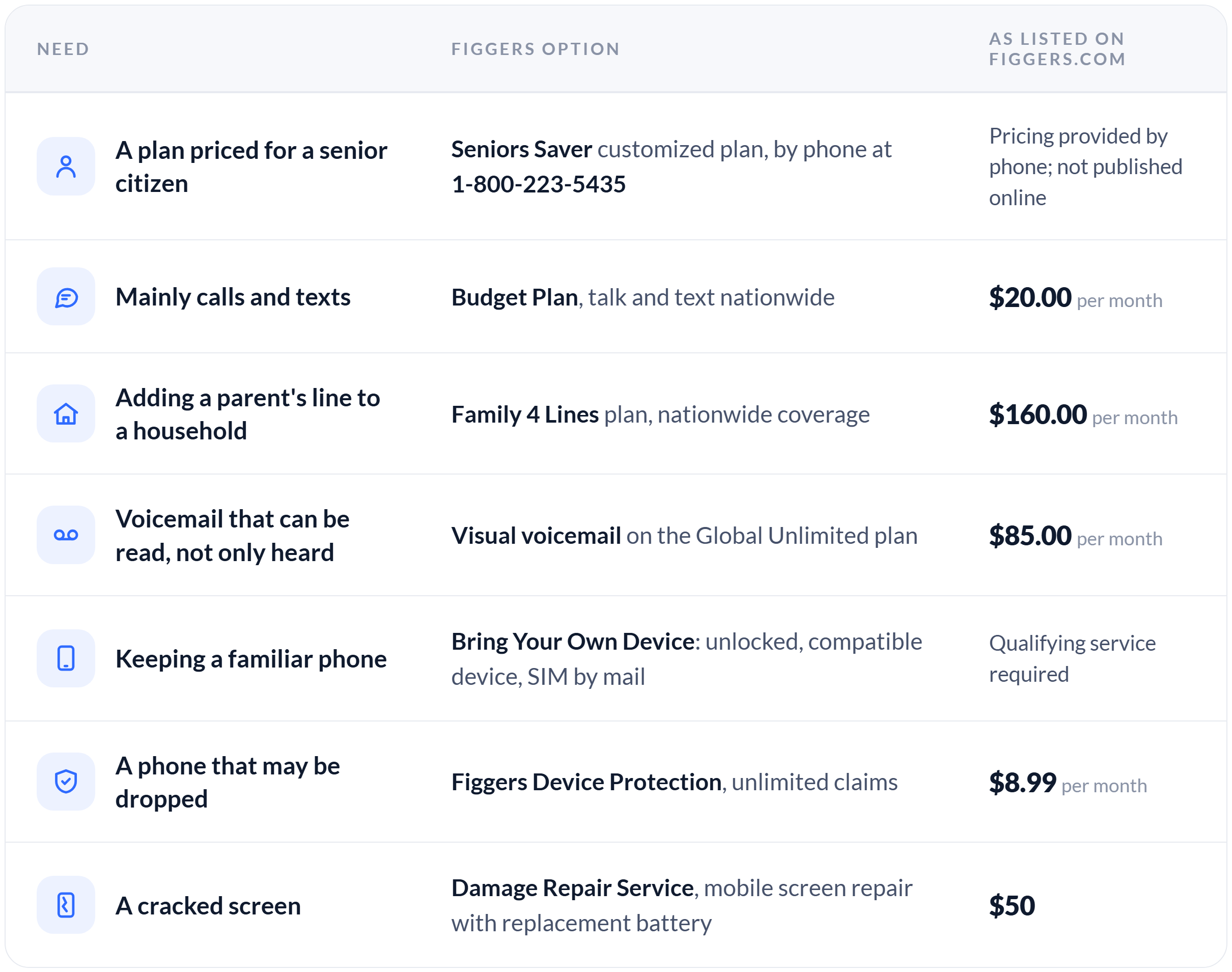
The Figgers Support page lists customized plans for senior citizens, under the name Seniors Saver, alongside plans for service members and first responders; pricing is provided by phone at 1-800-223-5435 rather than online. All Figgers plans run without an annual contract, support is available 24 hours a day, 7 days a week by phone, text, chat and email, and prices here are as listed on figgers.com at publication.
The family setup checklist
Charge the phone fully, insert the Figgers SIM or activate the eSIM, and confirm a test call connects.
Set text size, display size and bold text, turn on automatic brightness with a two minute screen timeout, then have the person read a message back to you.
Raise ringer and alert volume and enable flash or vibration alerts.
If a hearing aid is worn, enable hearing aid mode and test a call in the kitchen and in the car.
Enter lock screen emergency information and at least two emergency contacts.
Set a PIN, add face unlock, write the PIN on paper and store it in a safe place known to the family.
On a DragonX, enter the emergency call feature's recipients, send a test message and assign the shortcut key.
Turn on spam call screening, silence unknown callers and agree on the one time code rule.
Save Figgers support in contacts as "Figgers Support" with 1-800-223-5435 and Customer.Service@Figgers.com.
Build the simplified home screen: Phone, Messages, Camera, weather and pinned family contacts.
Confirm wireless emergency alerts are on and location sharing is active with one family member.
Register Figgers Device Protection if chosen, photographing the device as the registration requires.
Put a monthly reminder on your own calendar to install software updates, clear storage and confirm backups ran.
Reaching rural counties and retirement communities
Older adults in Florida's interior counties and large retirement communities often live beyond the reach of wired broadband, which makes the phone the household's primary connection. Before ordering, enter the street address at figgers.com/add-new-line to view the coverage map, and repeat the check for any seasonal residence. Because Figgers service carries no annual contract, a plan chosen today can change as needs change.
What Florida readers should do next
Block out one sitting, print the checklist, and set the phone up with the person rather than for them. Call 1-800-223-5435 to ask about the Seniors Saver plan and a device's hearing aid rating, check coverage at figgers.com/add-new-line, and keep Figgers support saved in the phone so the next question already has a number attached.
About Figgers Communication Inc.
Figgers Communication Inc. is an American telecommunications company and device manufacturer headquartered in Fort Lauderdale, Florida. Founded by Freddie Figgers, the company provides cellular, mobile broadband, home phone and international calling services without an annual contract, and designs its own phones, tablets, laptops and connected hardware. Figgers customer support is available 24 hours a day, 7 days a week by phone, text and email at 1-800-223-5435 and Customer.Service@Figgers.com, and by live chat at www.figgers.com.